Uncensored AI Video

Image to Video

Turn one image into an AI video with motion you direct.

Video configuration controls

Drop images here

Resolution
Duration
5s
Aspect Ratio

Turn a Still Image into an AI Video

Source: one burgundy paper hummingbird perched among ivory paper flowers
Original source image
Archived generated clip · 6 seconds

Image-to-Video, also called AI photo to video or picture to video, turns one still frame into a short AI-generated clip. Upload an image, describe what should move, guide the camera, and name the details that should stay stable.

The source guides the composition but does not guarantee that every detail stays the same. If the picture itself needs work, use Image-to-Image first. Start with Text-to-Image when you need to create a reference.

The AI Image-to-Video workspace is free to open. Compare models, refine the prompt, and adjust the setup at zero cost until the shot direction feels right. A render uses the exact Credits shown on the button; results stay private unless you publish.

Animate your image

From a still to a motion brief

What to look for in this paper-garden clip

Generated on August 27, 2026 with Seedance 2.5 through WaveSpeed. This archived example shows one result; available tools and model settings can change.

The source
One paper hummingbird, a curved perch, and layered flowers. The same source was supplied as the first and last image in the archived request.
The requested motion
Preserve the same burgundy paper hummingbird and handcrafted garden. Add one controlled hover, subtle flower movement, layered parallax, and a warm spotlight while keeping the 4:3 composition stable.
What should stay recognizable
The single bird, its paper texture, the perch, and the arrangement of the flowers.
Check the movement
Watch the wings and beak during the hover. Pause at the return to the perch and compare it with the starting image.
Check the ending
A request for a loop does not prove a seamless join. Watch the final frame followed by the opening frame.
Try a simpler brief
If several movements compete, begin with the bird staying perched and one slow camera move.
Read the original motion prompt

Animate this exact handcrafted paper diorama while preserving the same single burgundy paper hummingbird, its anatomy, feather cutwork, long beak, two folded wings, tail, tiny feet, curved ivory stem, flower arrangement, black leaves, warm-ivory petals, deep-black background and 4:3 composition throughout every frame. Everything remains visibly made from real cotton paper; never become a living flesh-and-feather bird, illustration, plastic or metal. One continuous six-second museum-quality macro film. 0-2 seconds: a warm-ivory spotlight slowly travels across the paper fibers. The front ivory flower opens by only a few degrees, two burgundy leaves gently unfold, and distant black foliage shifts with subtle layered parallax. The bird remains perched, breathes with an almost imperceptible paper-body rise, and tilts its head naturally toward the light. 2-4 seconds: the hummingbird releases the stem, opens exactly two paper wings, and makes one small controlled hover no more than one body length above the same perch. Wing motion is elegant and readable with stable silhouette rather than a blur. The curved stem flexes lightly, nearby petals respond with restrained movement, and the camera makes a slow eight-degree dolly arc. 4-6 seconds: the bird returns to the exact same stem, closes its two wings, settles into the original pose, and the light and flowers ease back toward the opening composition for a soft seamless loop. Keep the bird and main flowers inside the central 70 percent. Maintain crisp folded edges, visible paper fibers, realistic miniature-set shadows and shallow depth of field. Premium Editorial Noir, deep black, warm ivory, restrained burgundy and cranberry, cinematic quiet luxury. No scene cut, no abrupt motion, no new objects, no extra bird, no duplicate bird, no extra wings, no missing wings, no extra feet, no malformed beak, no body morphing, no color change, no living feathers, no liquids, no sparkles, no glowing magic, no cartoon, no text, no letters, no logo, no watermark, no pseudo-writing. No generated audio.

Sample source and file details

Model: bytedance/seedance-2.5/image-to-video. Playback file: 960 Ă— 718, H.264, 6.042 seconds.

H.264 transcode; scaled to 960 px wide for browser playback; original composition retained, no frame interpolation or generative editing.

File integrity: 4081d18abfa7fa59686e00df1856a69ad34de45eabffe5d8053c4717ff280407

Open the generation record. The example was generated directly through the provider; it is not a recording of a task submitted through this site.

Follow the image-to-video walkthrough or try a motion prompt with your own image.
Live image-to-video options

Check the models, settings, and Credit range

This concise view comes from the same live options used by the form. Choose a model above to see the exact duration, resolution, and Credit cost for that AI video-from-image setup.

Live settings could not be verified. Retry the model list in the generator before choosing a setup.Start with an image

Three practical steps

How to turn a photo into a video

  1. 01

    Prepare the source

    Pick a clear photo, illustration, or product frame you can use. Leave room for movement and keep key details away from the crop edge.

  2. 02

    Direct the motion

    Describe one main action, supporting environmental movement, camera behavior, and what should stay unchanged. One specific motion is clearer than a list of unrelated effects.

  3. 03

    Generate and review

    Compare the model, duration, frame, resolution, and Credit cost. Generate the video, inspect identity and composition, then revise one detail at a time.

For creators, teams, and storytellers

Ways to animate a still image

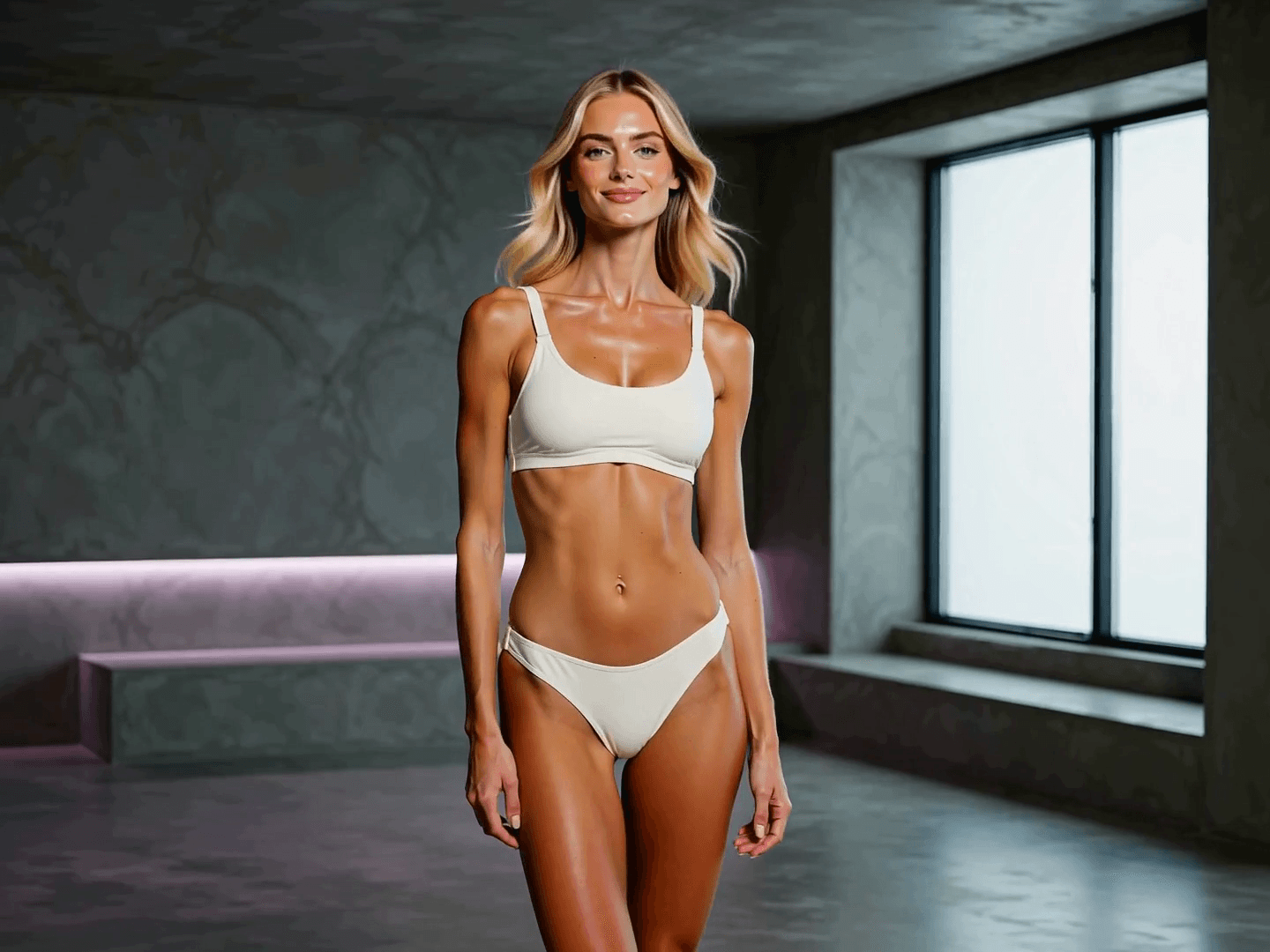
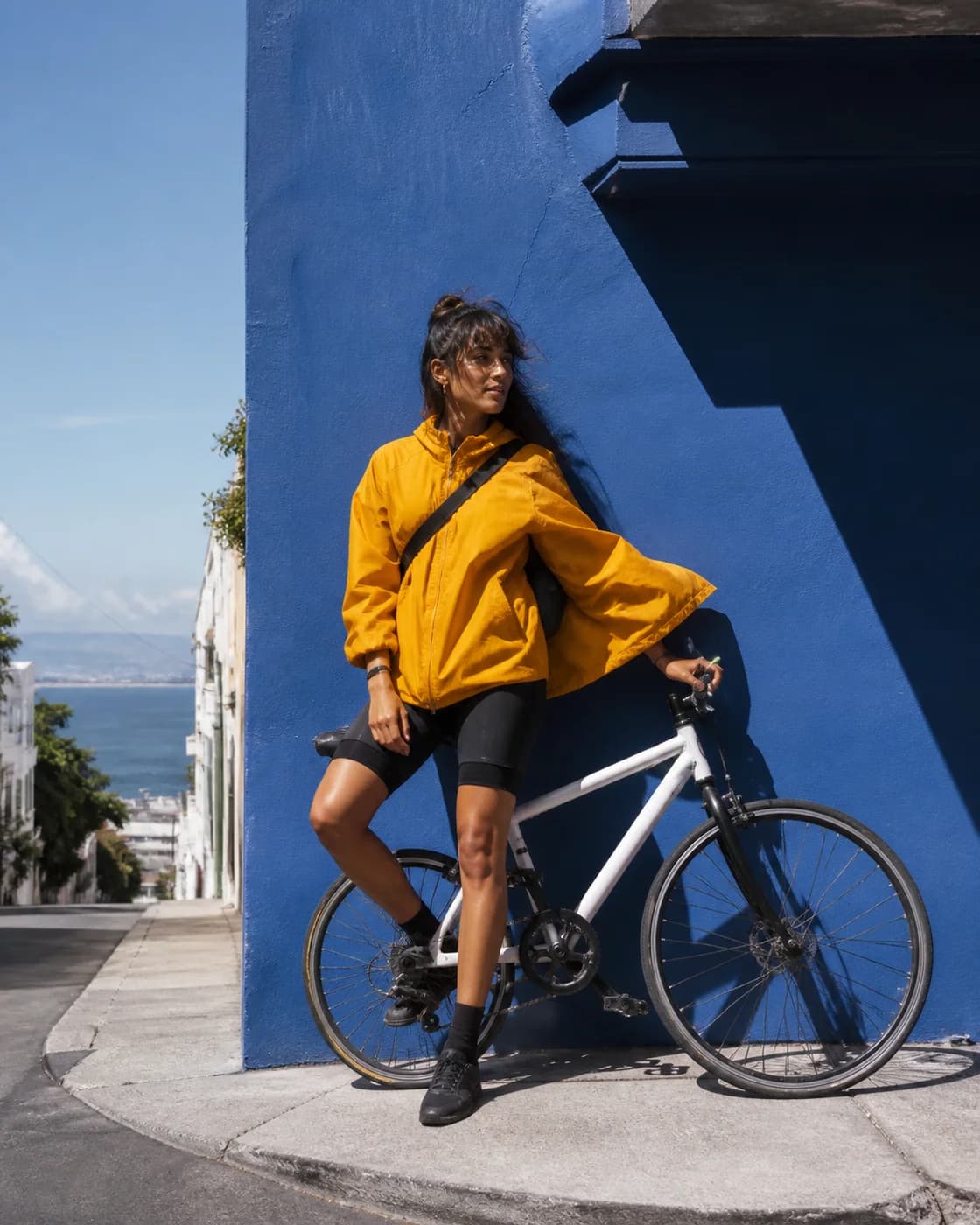
These still images are source-frame concepts and visual references, not Image-to-Video outputs.

A fictional adult bicycle messenger in a saffron jacket beside a cobalt wall

Source-frame concept

People and editorial visuals

Direct one clear gesture, expression, fabric movement, or camera move while keeping the person and composition recognizable from the source frame.

Animate an editorial frame
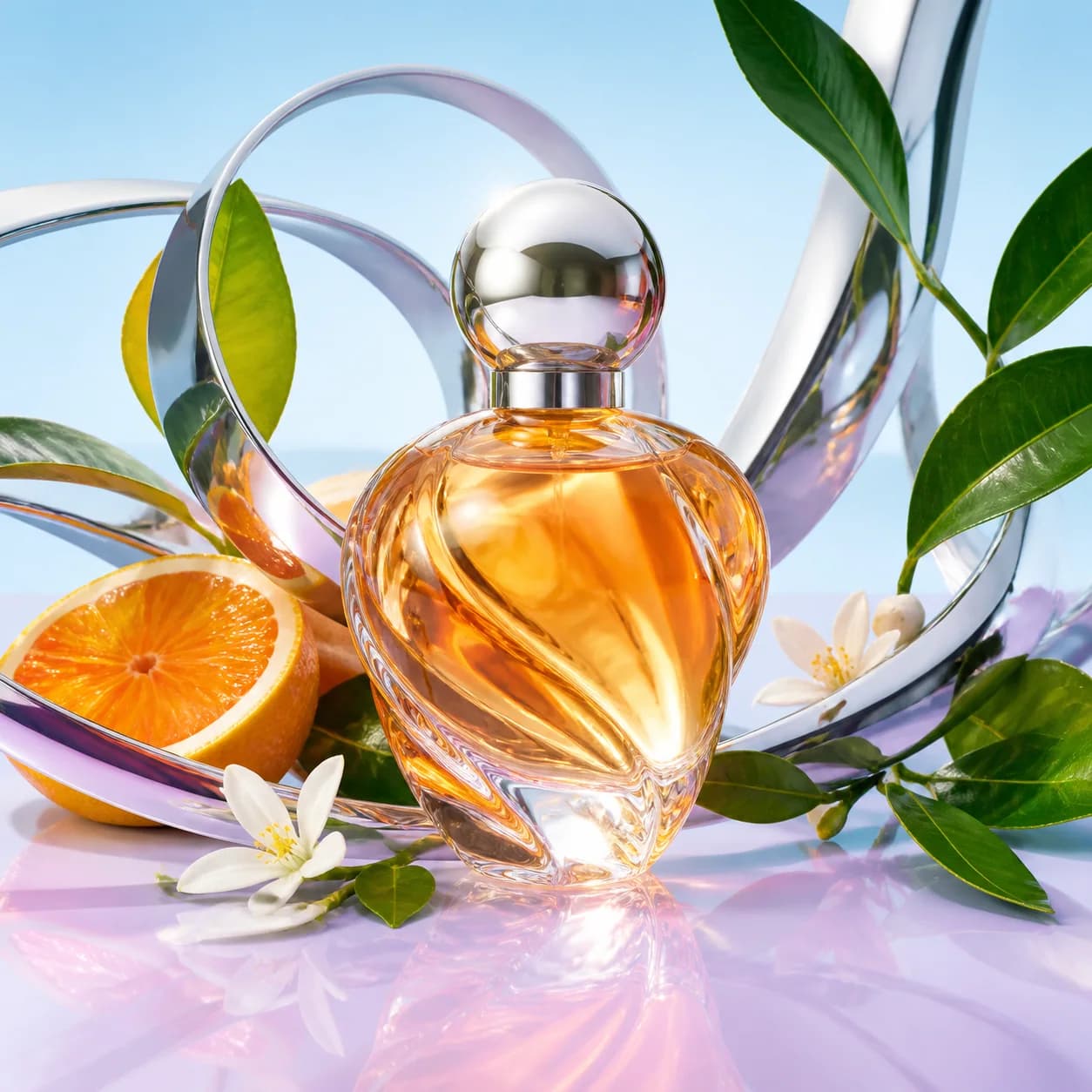
An unlabeled citrus glass perfume bottle framed by chrome ribbons and green leaves

Visual reference

Product and campaign concepts

Turn a product still or campaign key art into a short video from image, then compare motion ideas before committing to a larger production.

Explore a campaign motion
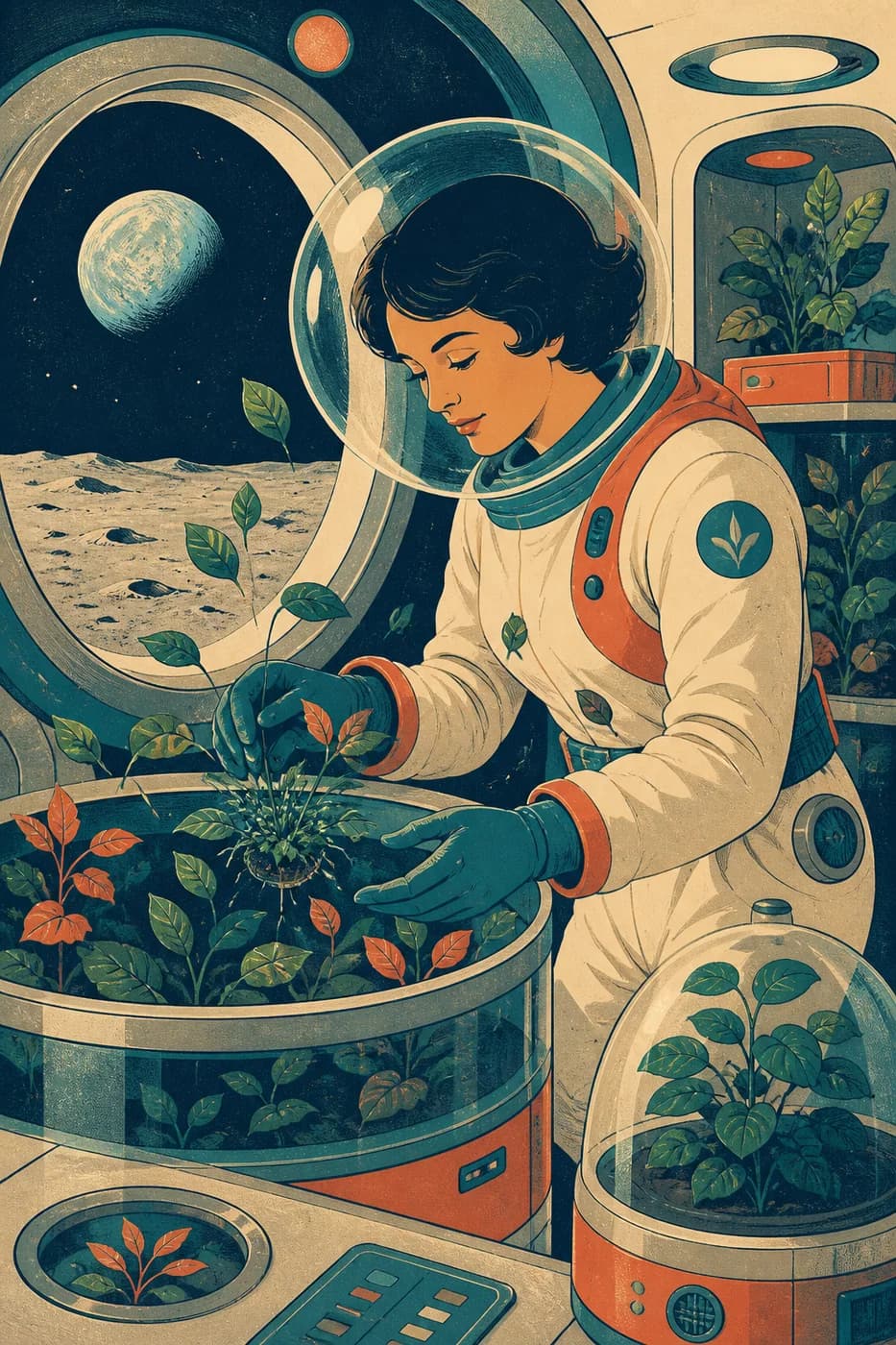
A fictional adult lunar botanist tending floating plants in a retro screenprint habitat

Source-frame concept

Illustration and fictional worlds

Use picture-to-video motion to give a crafted character or imagined setting one readable action while preserving its silhouette, palette, and art direction.

Move an illustrated world
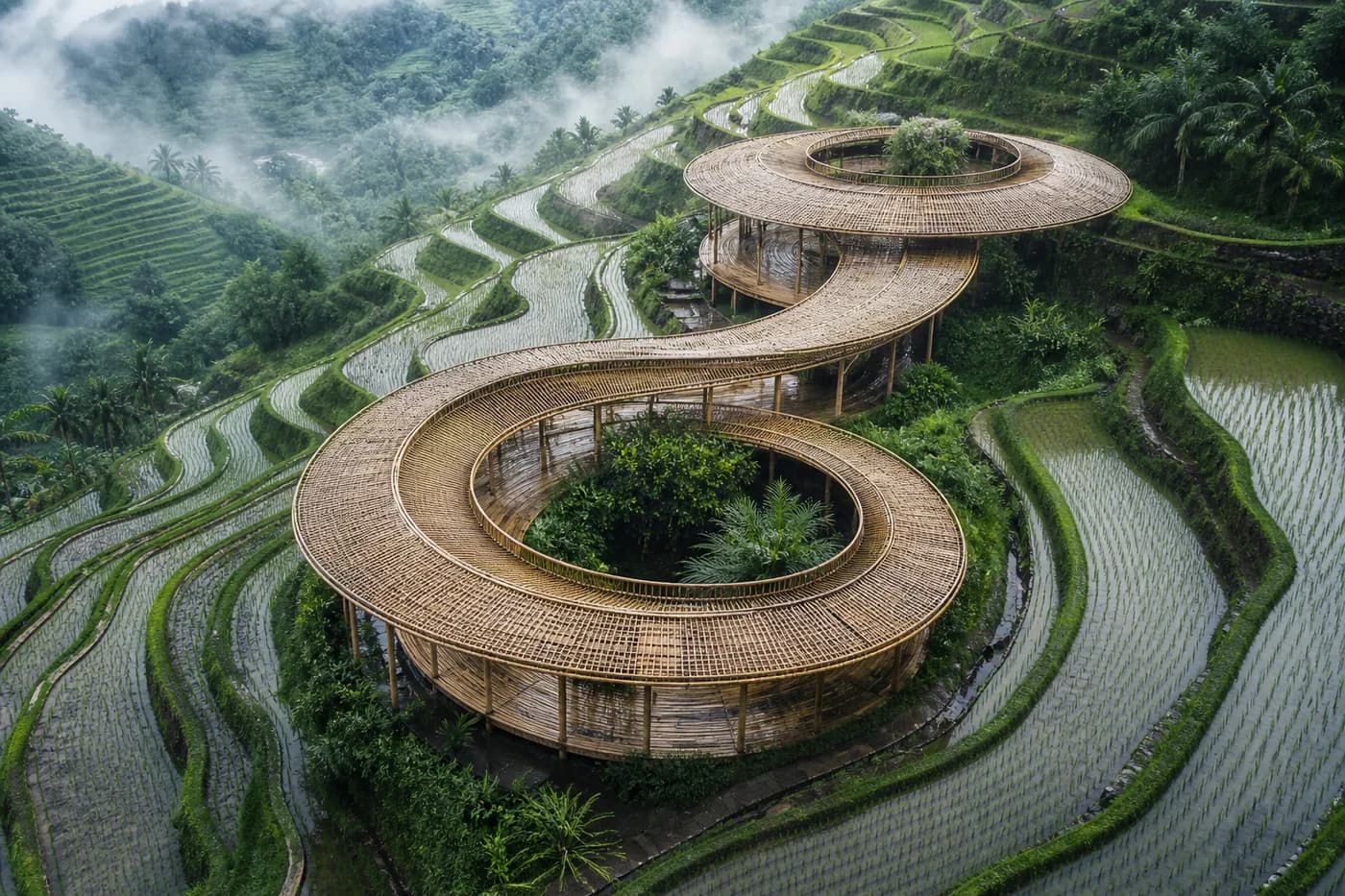
A woven bamboo pavilion spiraling through wet emerald rice terraces

Visual reference

Environments and architecture

Add measured camera and environmental movement to a landscape, interior, or architectural frame without losing the spatial anchors that make the image readable.

Animate an environment

What the form tells you up front

A clearer AI picture-to-video path

Plan the shot for free, verify the published settings, and know the cost before generation starts.

Cost shown before you create

The generate button shows the current Credit cost for the exact AI image-to-video model, duration, resolution, and frame you selected.

Compatible settings stay together

Change one setting and the form moves to a compatible published setup, so the request stays within combinations the model can run.

Broad creative range, clear limits

Explore lawful, consensual fictional and adult creative work with fewer blanket topic restrictions. Site rules, provider limits, rights, and consent still apply.

Built for quick revisions

Keep the source and motion prompt after a completed run. Rewrite and compare the setup at zero cost until the shot direction feels right; a new render uses the Credits shown.

Start from your image

Privacy, rights, and consent

Use material you have the right to animate

Upload only material you are allowed to use. “No Content Restrictions” does not mean no rules: this Image-to-Video tool gives lawful, consensual creative work broad room while site policy, provider limits, rights, and consent continue to apply. Your source and result stay private by default.

01

Workspace privacy

Your Image-to-Video source, motion prompt, and generated result remain private unless you choose to publish eligible material.

02

Start with authorized material

Upload only material you are authorized to use, with the rights and consent required for the people and content shown.

03

Check every result

Review the finished motion before downloading, using, or publishing it because generated details can still change.

Prepare images and direct motion with more control

Use these guides when a result needs a cleaner source, steadier identity, or more precise camera and subject motion.

AI Image-to-Video questions

Short answers about source images, free planning, Credits, privacy, and creating a video from image.

What is image-to-video?

Image-to-video, also called AI photo to video or picture to video, uses a still image as the visual anchor for a short generated clip. The motion prompt directs the subject, camera, and environment while the AI model uses the source to guide composition and appearance.

When is my source image uploaded?

You can choose a source image in the form before signing in, but selecting it only creates a local preview. The file is uploaded after you sign in and submit a generation.

How should I prepare an image for animation?

Use a clear source frame, avoid tiny critical details near the crop, and leave space for the intended motion. For a steadier video from image, name the subject details and composition that should remain unchanged. Make sure you have the rights and consent required for the source and intended result.

Which Image-to-Video settings can I choose?

The live model list determines the duration, resolution, aspect ratio, and source-image combinations available to each AI Image-to-Video model. The form keeps those choices compatible, marks subscriber-only options, and shows a concise range for the selected model.

How do Credits and any free allowance work?

Opening the workspace, comparing models, writing a prompt, and adjusting the picture-to-video setup are free. Creating a result uses the exact Credit amount shown on the button, and the form checks your balance before submission. Any free generation allowance appears only when it is actually available to your account.

Do I need to sign in to animate an image?

You can prepare the source, prompt, and settings before signing in. Sign-in is required to check your Credit balance, upload the source, submit a generation, and follow its private status.

Are my source image and result private?

Source images, motion prompts, and generated results are private by default unless you explicitly choose to publish eligible material. You must have the rights and consent required for every upload and intended use. Site policy, provider handling, and the Privacy Policy still apply.